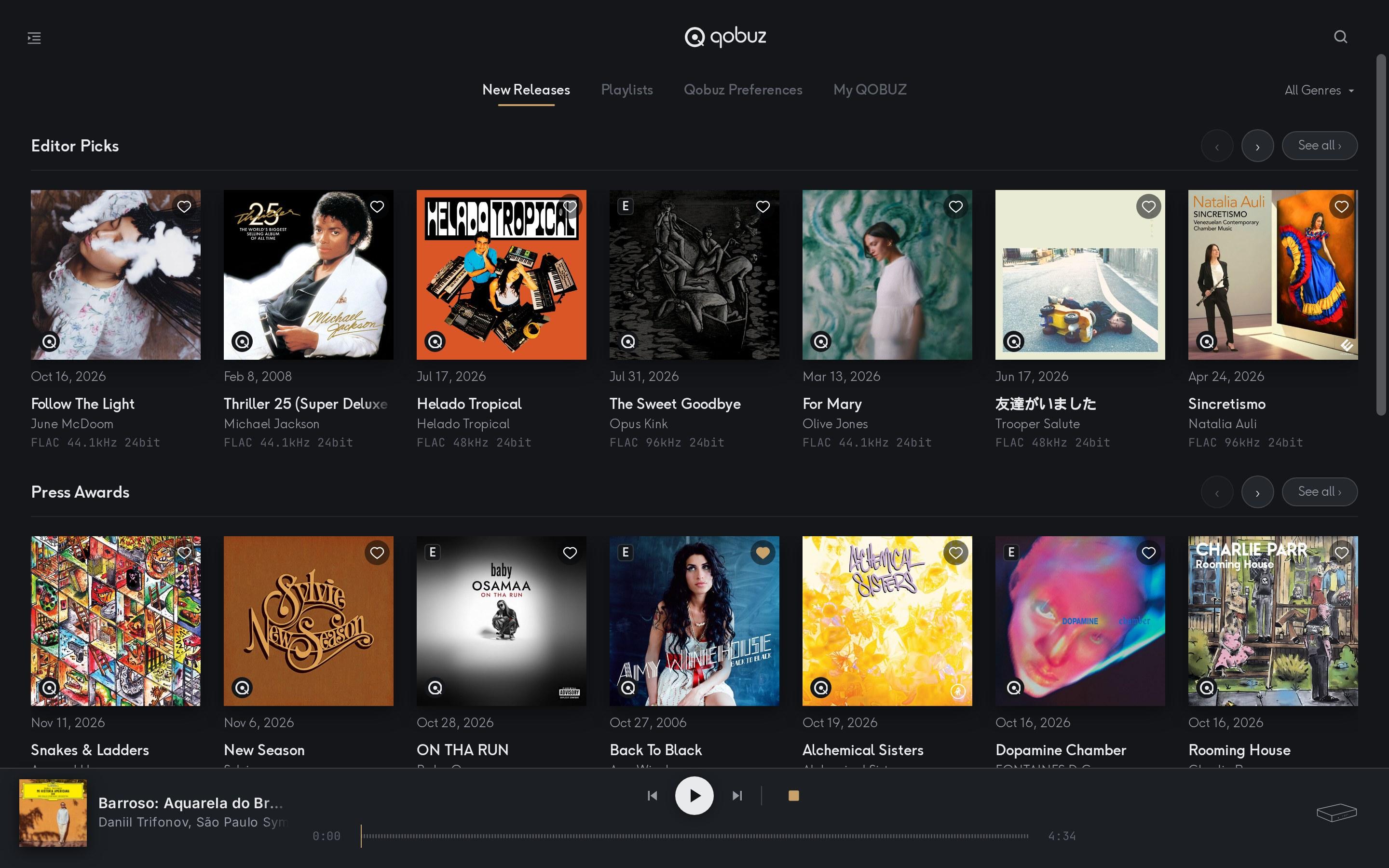
Streaming, on the same wall
Sign in with your own TIDAL or Qobuz account under Settings → Streaming. Each service gets its own place in the sidebar, laid out the way you’d expect: picks from the editors, new releases, your favourites and playlists, and a search across artists, albums, tracks and playlists.
What you find there plays through the same devices as your own files. Hearts and playlist edits are saved to your account, so the TIDAL or Qobuz app on your phone sees them too.
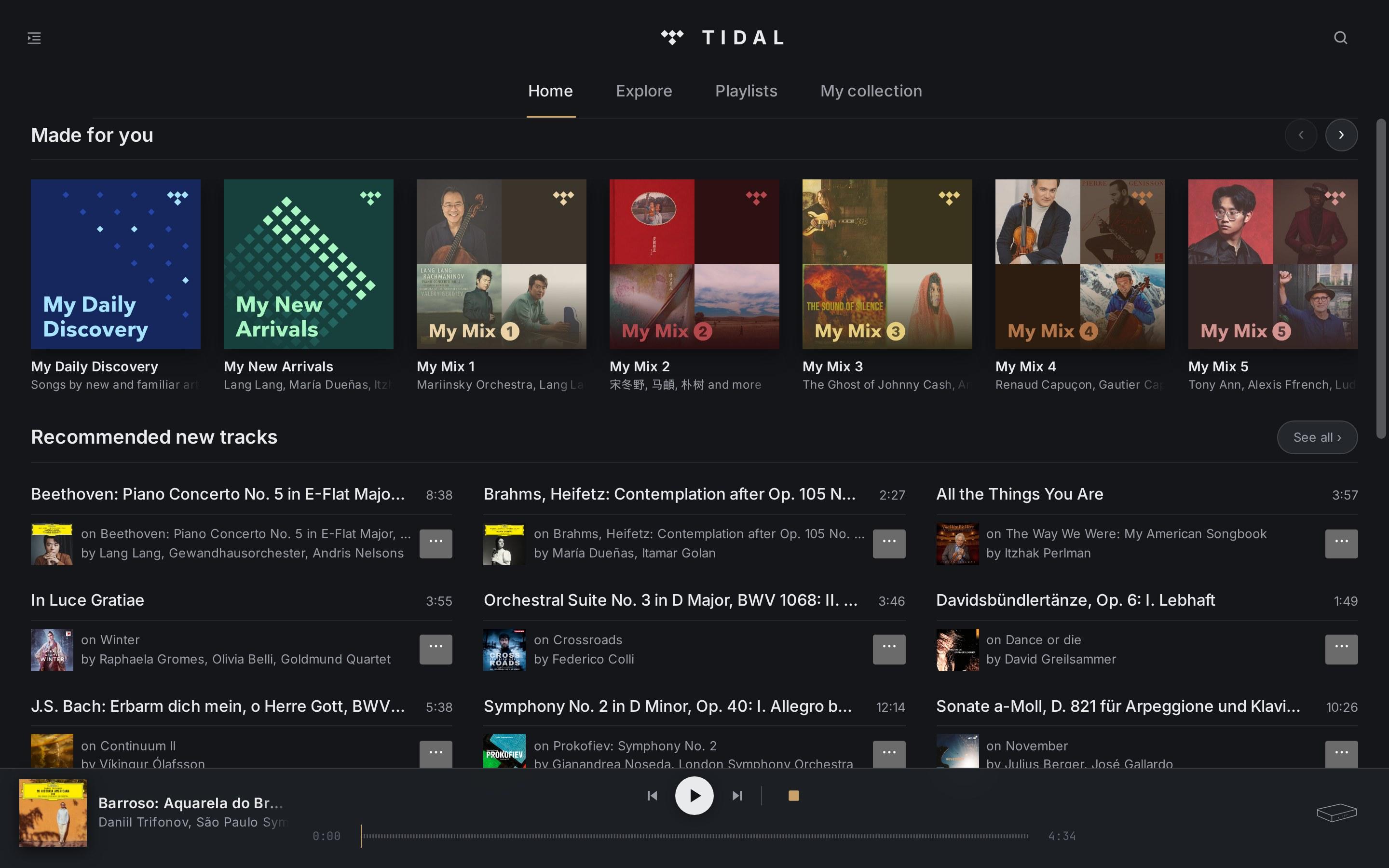
- Your own subscription
- Favourites sync both ways
- MemoryPlay: local files only
A direct line to your DAC
Plug a USB DAC into the machine running PureAlbum and it appears under Settings → Audio Devices. There is no renderer or bridge in between. PureAlbum opens the DAC on its own, plays gapless, and sets a CPU core aside for playback when the machine has one to spare.
By default nothing is changed: each file reaches the DAC as it is. If you want processing, it’s in the DAC’s settings: upsampling with SoX or r8brain, conversion from PCM to DSD, ReplayGain levelling, and a choice of the DAC’s own volume or a software one.
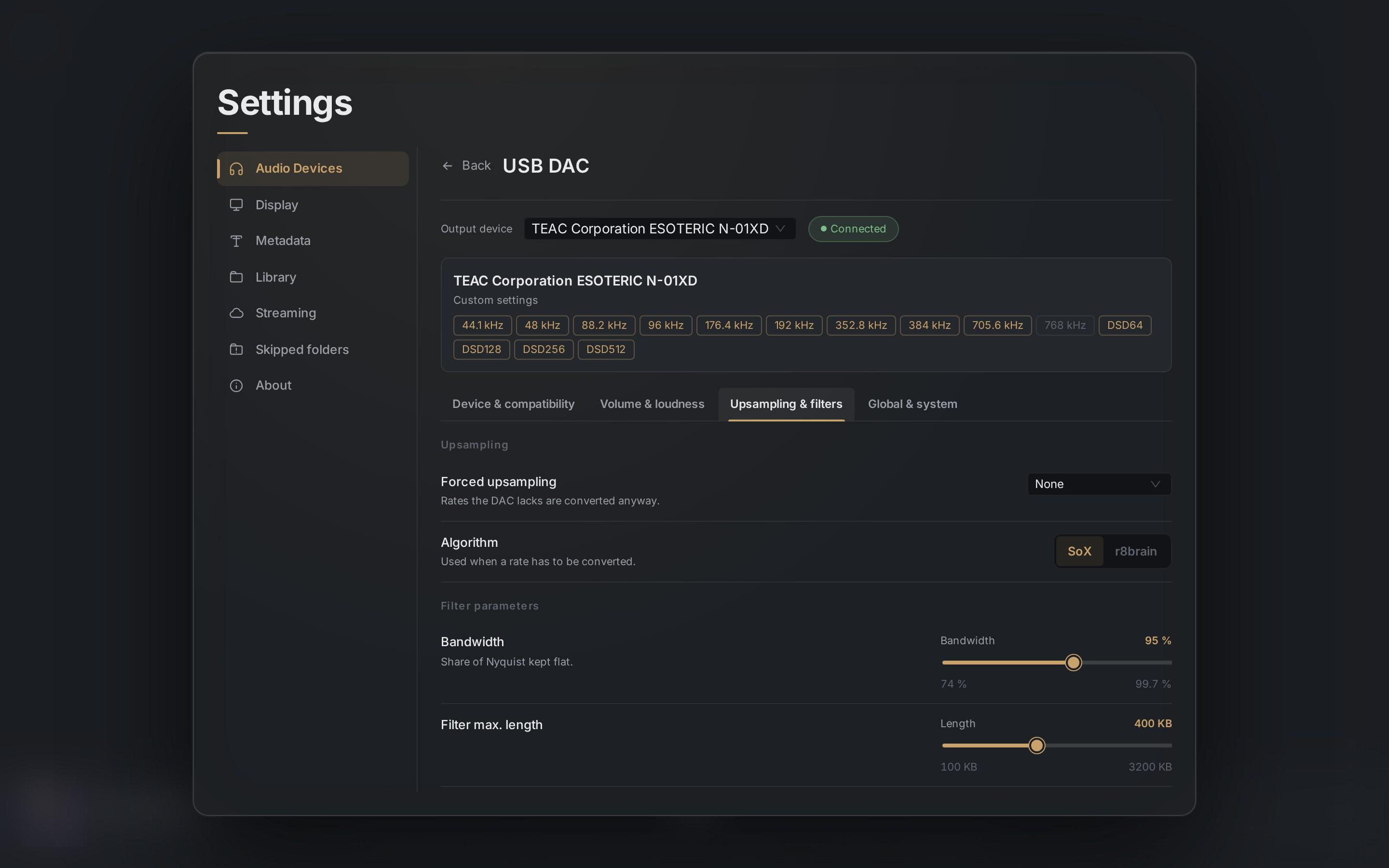
- Native DSD · DoP
- SoX / r8brain
- PCM → DSD
- ReplayGain
- Gapless
- Hot-plug
Composers, works, movements
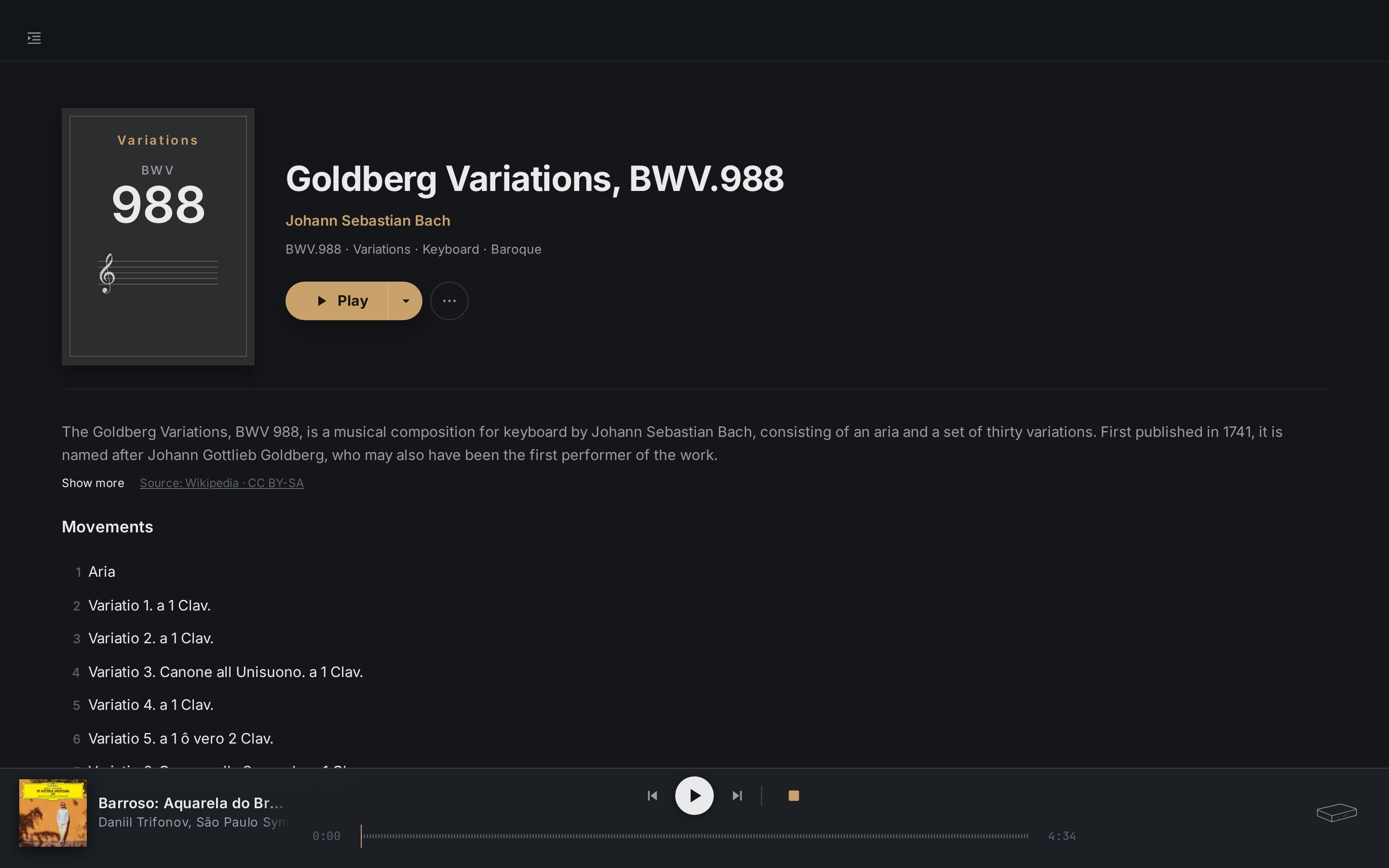
Classical music is filed by work now. PureAlbum works out which movement belongs to which work, matches it against a built-in catalogue, and shows each work with its catalogue number, key, scoring and movements, beside every recording of it in your library.
Composer pages list their works, the performers you own most of, and a short introduction from Wikipedia. Play highlights picks a few of their best-known works and plays one complete recording of each. If a grouping is wrong, fix it from the album page; your fix survives a rescan.
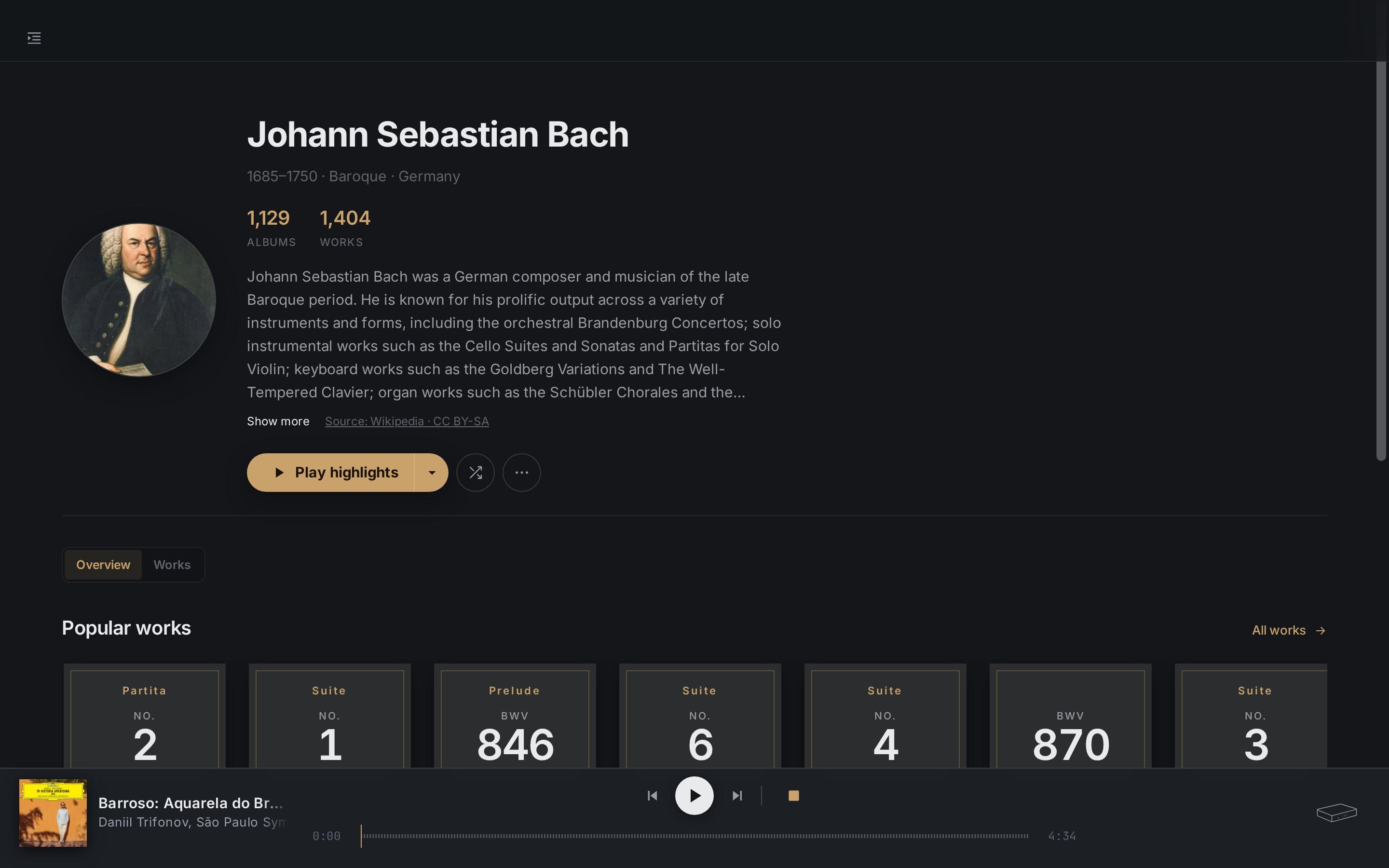
- Filter by period, genre, scoring
- Conductor and orchestra
- Names in your language
Smaller things worth knowing
- 0.4.19Watch the wireDiretta’s overview can plot the packets your transfer mode actually sends, so you can check the setting does what it says.
- 0.4.20USB drivesPick a USB or internal disk from a list to add it to your library. It remounts at boot, and after being unplugged and plugged back in.
- 0.4.22Light themeSettings → Display → Theme: dark, light, or follow your system.
- 0.4.23Skipped foldersSettings lists every folder the scan couldn’t add, and the reason.
- 0.4.25Gapless on HQPlayerTracks no longer cut to the next one about five seconds early.
- 0.4.27Continue playingHome opens on the album you were last listening to.
- 0.4.35Diretta devices stay foundA Target that drops off the network shows as offline and returns by itself.